
Terminal UI
The terminal UI is for interactive, keyboard-first diagnostics inside a terminal. It uses the same core operations as the CLI, desktop app, and MCP server.
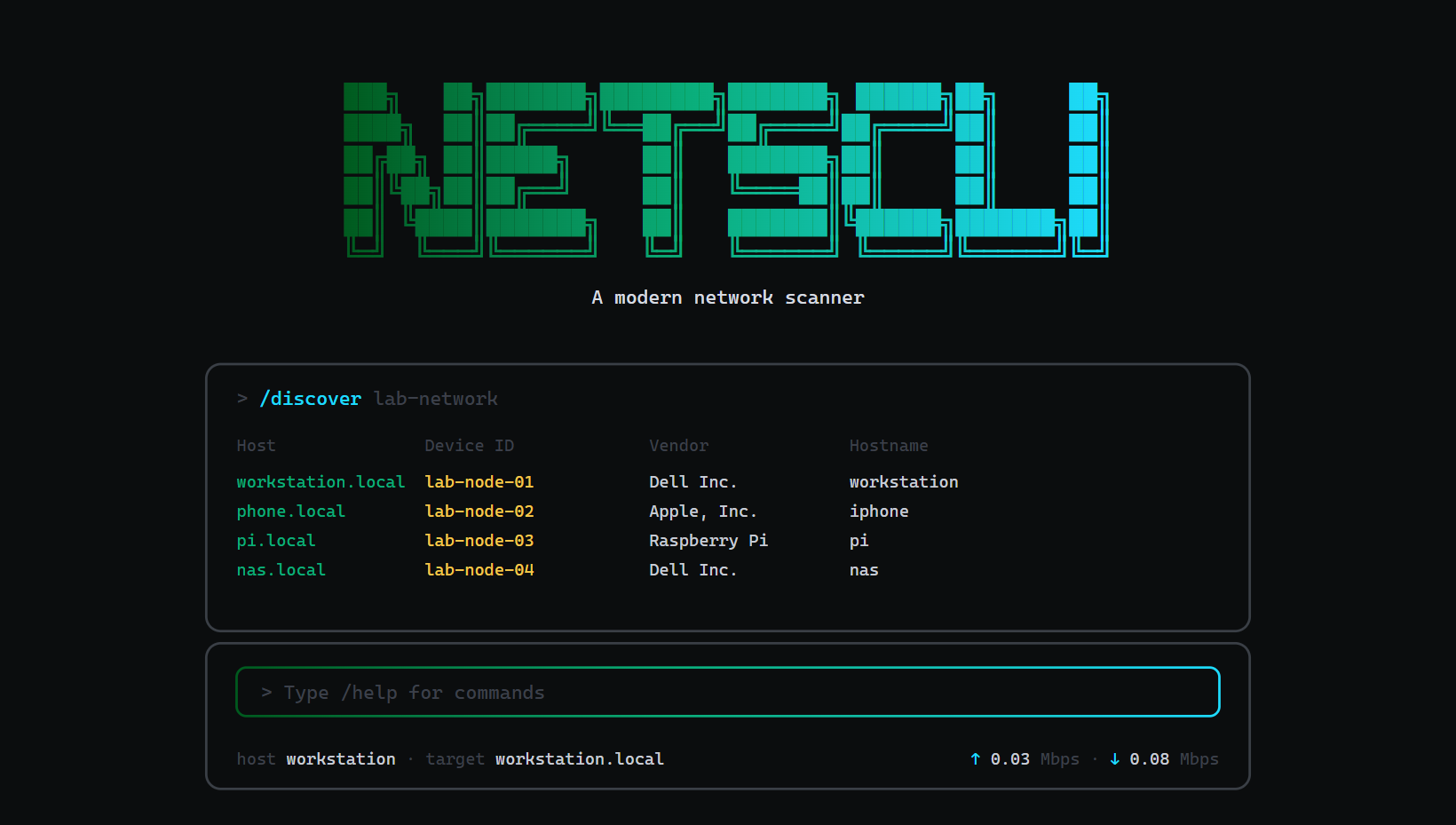
An illustration of /discover in the terminal UI, not a capture. The real screen shows a progress line while the run is going. When it finishes, each host appears as a small tree of mac, vendor and name lines. Local interface activity is along the bottom.
When to use it
Section titled “When to use it”Use the TUI when:
- You want an interactive session but prefer terminal workflows.
- You are connected to a server or workstation without a desktop shell.
- You want command history, autocomplete, and readable summaries in one screen.
- You are iterating on targets and ports by hand.
Use the CLI when a script needs JSON, YAML, CSV or Markdown. Use the desktop app when you need richer tables, filtering, multi-tab review, or row details.
Start the TUI
Section titled “Start the TUI”netscliThe TUI starts without a subcommand. From there, type commands in the input area.
Command entry
Section titled “Command entry”Common interactive commands mirror the CLI operations:
/discover 192.168.1.0/24/discover 192.168.1.0/24 --resolve/scan 192.168.1.1 22,80,443/scan 192.168.1.254 --udp/sweep 192.168.1.0/24 22,80,443/dns netscli.com/reverse 192.168.1.1/mdns --timeout 3000/interfaces/arpUse /help and completion to discover the available options. The TUI also includes /config for terminal-session settings and /export for saving the current session output.
/discover and /sweep show hostnames only when you add --resolve (or -r), as the CLI does. /dns takes the record type as --record <type>, as -r <type>, or as a second word, as in /dns netscli.com MX.
/arp shows the neighbor table. /arp add <ip> <mac>, /arp del <ip> and /arp clear change it, which needs administrator rights, and they run as soon as you press Enter.
A command that cannot read what you typed says so and does nothing. /ping host abc is an error, not four pings, and an extra word in /discover is an error, not something dropped.
Values with spaces
Section titled “Values with spaces”Words are split on spaces. /pcap and /export also read quotes, for a filter such as tcp port 80 and a path such as C:\My Scans\out.md. Either kind of quote works. A backslash is an ordinary character, so Windows paths can be typed as they are.
/pcap eth0 --filter "tcp port 80" --duration 10/export md --output "C:\My Scans\out.md"/export json --output ~/scans/out.jsonA ~ at the start of an export path means your home folder. Without the quotes, --filter tcp port 80 is an error that says to add them.
| Key | What it does |
|---|---|
Enter |
Runs the command. On a command name that is only partly typed, such as /e, it finishes the name first, as Tab does, and a second Enter runs it. |
Tab |
Finishes the command name from the highlighted suggestion. |
Up, Down |
Move through the suggestions while a command name is being typed, and through earlier commands otherwise. |
PageUp, PageDown |
Scroll the output. |
Ctrl+Home, Ctrl+End |
Jump to the top or the bottom of the output. While a command runs, Home and End do the same. |
Esc or Ctrl+C |
Cancels a running command. With nothing running, press it twice to exit. |
/exit also leaves the TUI.
On Linux and macOS a paste goes into the input as text, with its line breaks turned into spaces, so pasting several lines runs nothing. NetsCLI does not ask for this on Windows, so there a pasted line break is read as Enter. Paste one line at a time.
Session behavior
Section titled “Session behavior”The TUI is designed for investigation sessions:
- Command history stays close to the current result.
- Status colors highlight open ports, filtered ports, host state, and errors.
- Local interface and traffic status remain visible while you work.
/export mdor/export jsoncan preserve useful investigation output. Without--outputit writes to~/.netscli/exports, and it will not replace a file that already exists at a path you give.
Names and values that come from the network, such as an mDNS name or a DNS TXT record, have their control characters and text-reordering characters replaced with . before they are shown or exported. A device on your network cannot send an escape sequence to your terminal, or into the file, that way.
Set NO_COLOR to run the TUI without colour. Bold stays, and the selected row in /config is shown reversed.
Output model
Section titled “Output model”The TUI favors readable summaries over exhaustive machine-readable structures. If you need stable structured output, run the same operation through the CLI with --json or --yaml.
Limitations
Section titled “Limitations”Terminal rendering depends on the terminal emulator and font. Wide tables, long IPv6 addresses, and long DNS names may wrap or truncate more aggressively than in the desktop app.